
Declare a work suspension for a typhoon or flood
Declare a full-day or partial-day work suspension by scope, set the pay status, and notify employees by push and email. Undertime and tardiness are waived according to the declaration.
Available on Enterprise
Declare a suspension
Go to Settings and select Work Suspensions. The page lists suspensions from the last 30 days with their scope, dates and status.
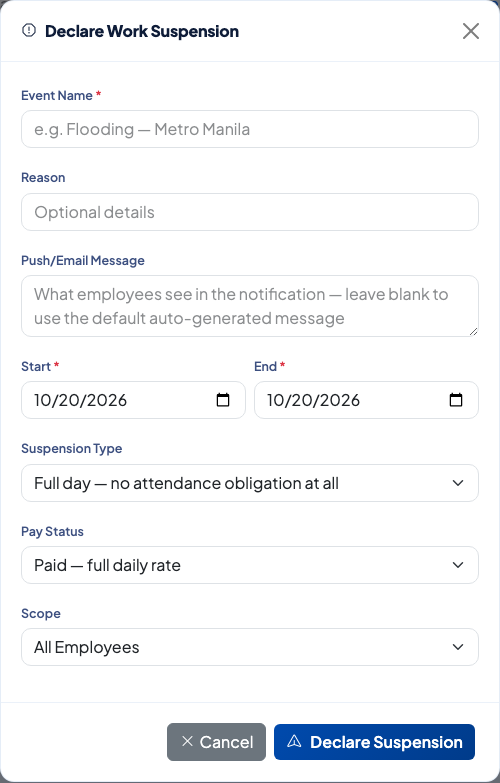 The form sets the dates, how much of the day is suspended, how it is paid and who it covers.
- Select Declare Suspension.
- Enter the Event Name, such as "Flooding: Metro Manila", and an optional Reason.
- Add a Push/Email Message, or leave it blank to use the default message.
- Set the Start and End dates.
- Choose the Suspension Type: Full day or Partial day. A partial day asks for an Effective Time.
- Choose the Pay Status: Paid, Half pay or Unpaid.
- Choose the Scope: All Employees, a Department or a Branch.
- Select Declare Suspension.
After you declare it
Employees in scope are notified by push and email. Attendance waives undertime and tardiness for the covered period.
- Cancel: select Cancel on a suspension that has not ended to withdraw it.
- Recalculate Attendance: opens the page for reprocessing attendance that was already calculated.
- Overlapping leave: use the calendar icon on the row to review leave requests that fall on the suspension dates.
Related
Questions people ask
What does a suspension change in attendance?
It waives undertime and tardiness according to the declaration. For a full day there is no attendance obligation at all. For a partial day, employees already clocked in may leave at or after the effective time without an undertime deduction, and anyone not yet clocked in by then is not marked late for the rest of the shift.
What are the pay status options?
Paid at the full daily rate, Half pay, or Unpaid.
Can I limit a suspension to one office?
Yes. Set the scope to a Department or a Branch instead of All Employees.
What if employees already filed leave on those days?
Use the cancel overlapping leave button on the suspension row. It opens the leave approvals list filtered to that event.
How do I fix attendance that was already processed?
Use Recalculate Attendance on the same page after declaring the suspension.