
Recalculate attendance after a schedule or policy change
Recalculate Attendance re-derives late minutes, undertime, status, break and night differential for every record in a date range, using the shift the employee was assigned in the Weekly Planner that day, or their contract work schedule when there is none.
Recalculate a date range
- Correct the cause first: the shift in the Weekly Planner, the work schedule on the contract, or the attendance policy.
- Open Settings and select Recalculate Attendance.
- Enter the start and end date. Keep the range as short as you can.
- Select Recalculate Records and confirm.
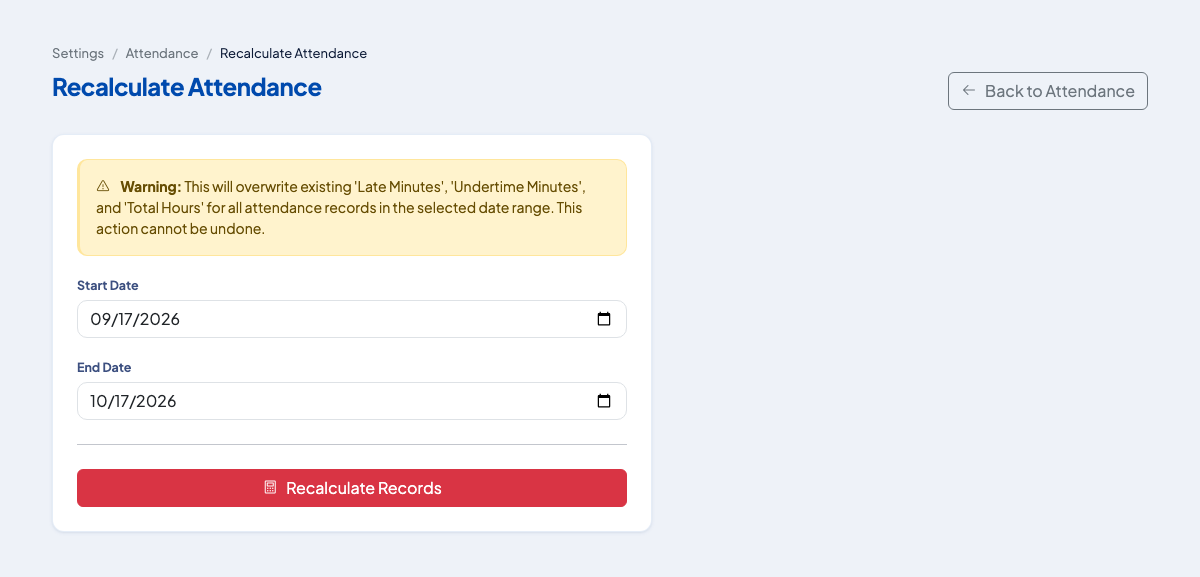 The warning states that existing late, undertime and total hours are overwritten.
OneHRIS reads each record that has a time in and finds the employee's contract for that date. If the employee has a shift assigned in the Weekly Planner for that day, the shift's start and end are the schedule. A rest-day assignment makes the day a rest day. With no assignment, the work schedule on the contract applies. It then recomputes the values and shows how many records were processed and how many failed.
What changes
| Field | Recomputed from |
|---|---|
| Late minutes | Time in against the schedule start, grace period and rounding |
| Undertime minutes | Time out against the schedule end |
| Status | Present, late or half day, from the rules above |
| Break minutes | The schedule's break |
| Night differential hours | Time worked between 10 PM and 6 AM |
Records for employees whose type is not payroll eligible, such as interns, are kept free of late and undertime penalties.
After recalculating
- Check a few employees under Time, then Attendance Logs.
- Run payroll again for the affected period, then review the pay register.
Test a policy first
The Attendance Policies page sets tardiness rounding, undertime rounding, the half-day cut-off, a monthly tardiness threshold and the late clock-in cut-off. The Policy Simulator lets you try a clock-in against a schedule and see which rule applied.
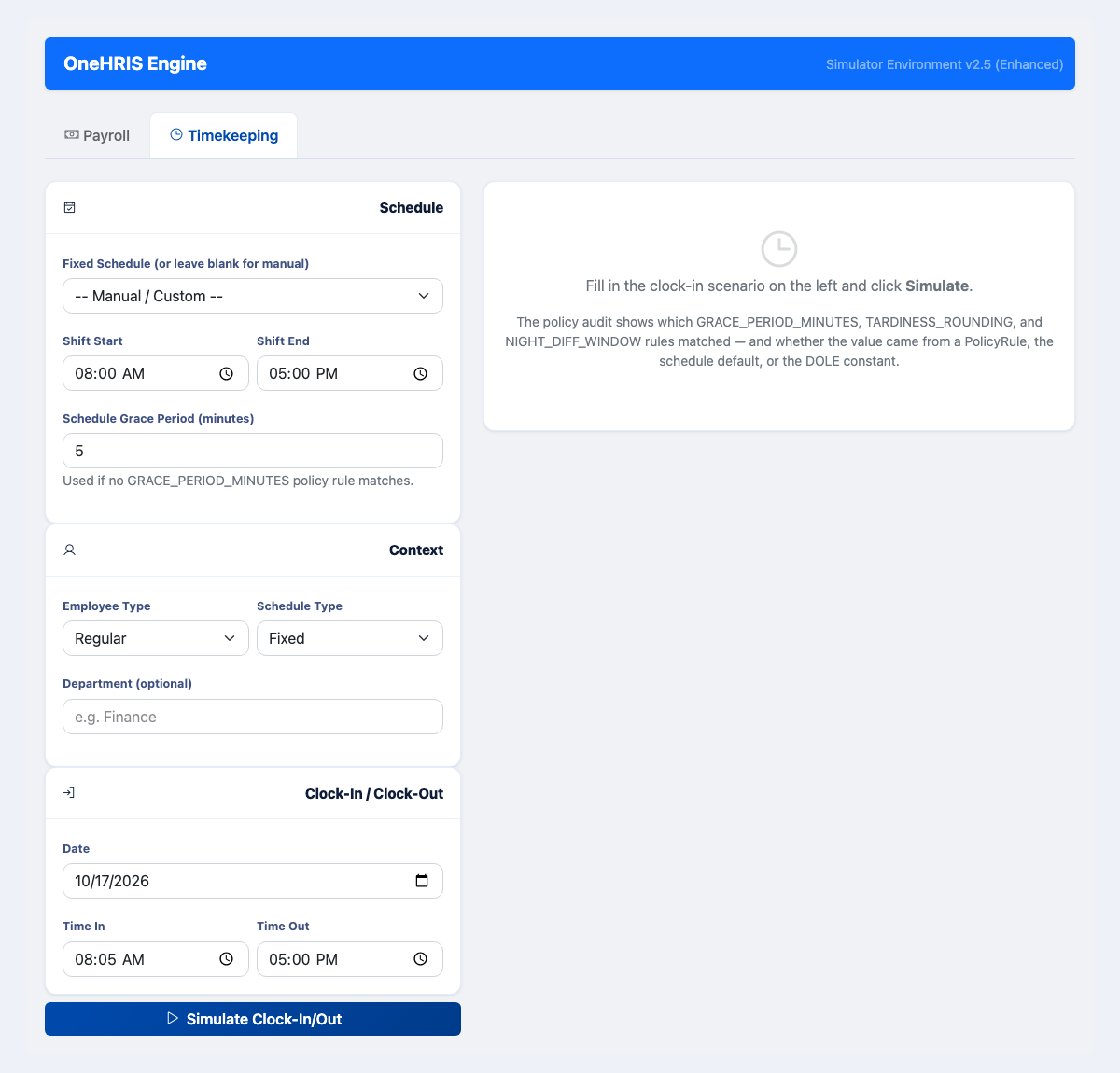 Enter a schedule and a clock-in, then select Simulate.
Questions people ask
When should I recalculate?
After you fix an employee's work schedule or change an attendance policy such as rounding, when records that were already saved should follow the new rule.
Can the recalculation be undone?
No. It overwrites the late minutes, undertime and total hours for the records in the range, so check the dates first.
Does it change a payroll that already ran?
No. Process the period again after recalculating.
How do I test a policy before changing it?
Use the Policy Simulator under Settings, then Policies. Its Timekeeping tab shows how a clock-in is judged against a schedule and a policy.