
Set up work from home rules
/
Set a company-wide cap on WFH days, choose whether a manager must approve each WFH declaration, and limit web clock-in to employees with a WFH entitlement.
Open the settings
Go to Settings and open WFH Settings, then General Settings. The page is titled WFH General Settings and holds the Company WFH Policy.
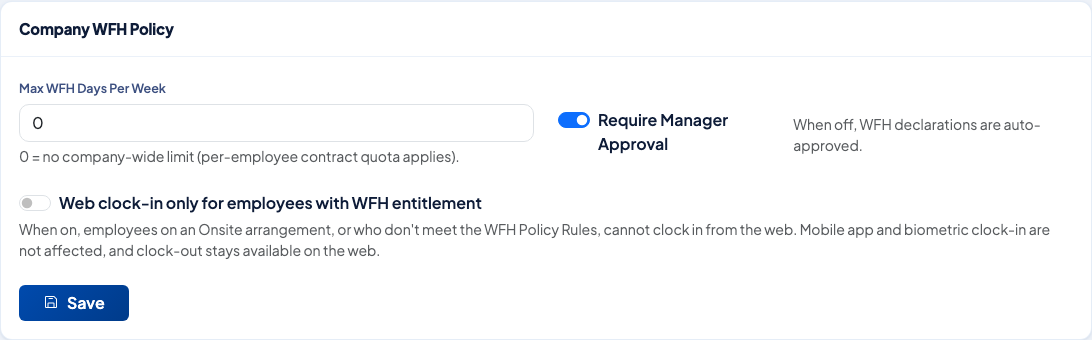 The three company-wide WFH options, with links to Policy Rules, Events and Grants at the top.
Choose the options
- Max WFH Days Per Week: the company-wide cap. Enter 0 for no limit.
- Require Manager Approval: when on, a manager approves each WFH declaration. When off, WFH declarations are approved automatically.
- Web clock-in only for employees with WFH entitlement: when on, employees on an Onsite arrangement, or who do not meet the WFH Policy Rules, cannot clock in from the web. Mobile app and biometric clock-in are not affected, and clock-out stays available on the web.
Select Save to apply the changes.
Related settings
- Policy Rules: eligibility rules, including a tenure requirement, and blackout dates.
- Grants: WFH grants for an individual employee over a date range. A grant created by HR is approved automatically and takes effect immediately.
- Events: a company WFH event declared for a date range, for all employees, a department or a branch.
Questions people ask
What does a limit of 0 mean?
No company-wide limit. The per-employee quota on the contract still applies.
What happens when manager approval is off?
WFH declarations are approved automatically.
Does restricting web clock-in affect the mobile app?
No. Mobile app and biometric clock-in are not affected, and clock-out stays available on the web.
Where are the other WFH settings?
Policy Rules, Events and Grants are linked from the buttons at the top of the WFH General Settings page.