
File and approve overtime
Employees file overtime in the Employee Portal, the request goes to their approver, and the Overtime Policy decides the minimum duration, the daily, weekly and monthly limits and whether pre-approval is required.
File an overtime request
- In the Employee Portal, open Requests, then My Requests, and select File a new request.
- Choose Overtime and select Continue.
- Enter the overtime date, the start time and end time, and the reason. The form shows the estimated hours and who the request will be sent to.
- Select Review, check the details and select Submit request.
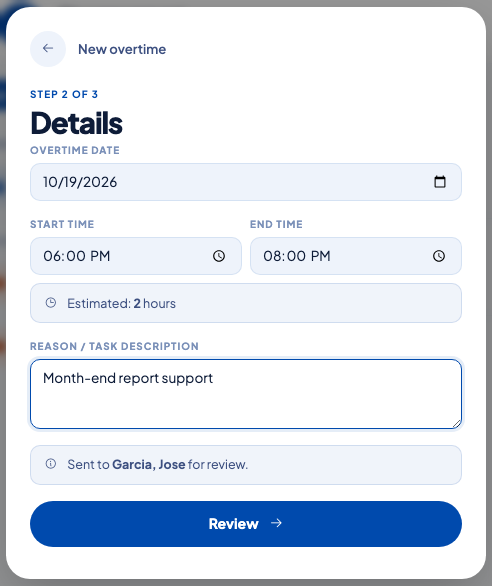 Overtime details with the estimated hours and the approver.
After submission the employee sees a reference number and the request appears under Pending.
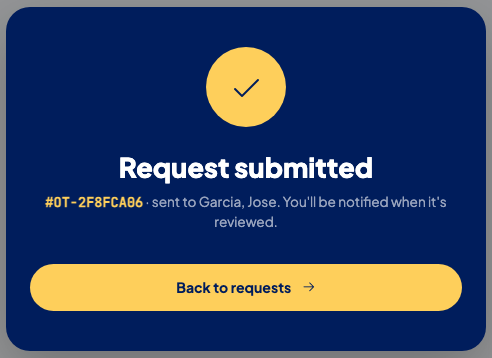 The request is sent to the approver and the employee is notified of the result.
What the Overtime Policy controls
HR sets the rules under Settings, then Policies, then Overtime Policy.
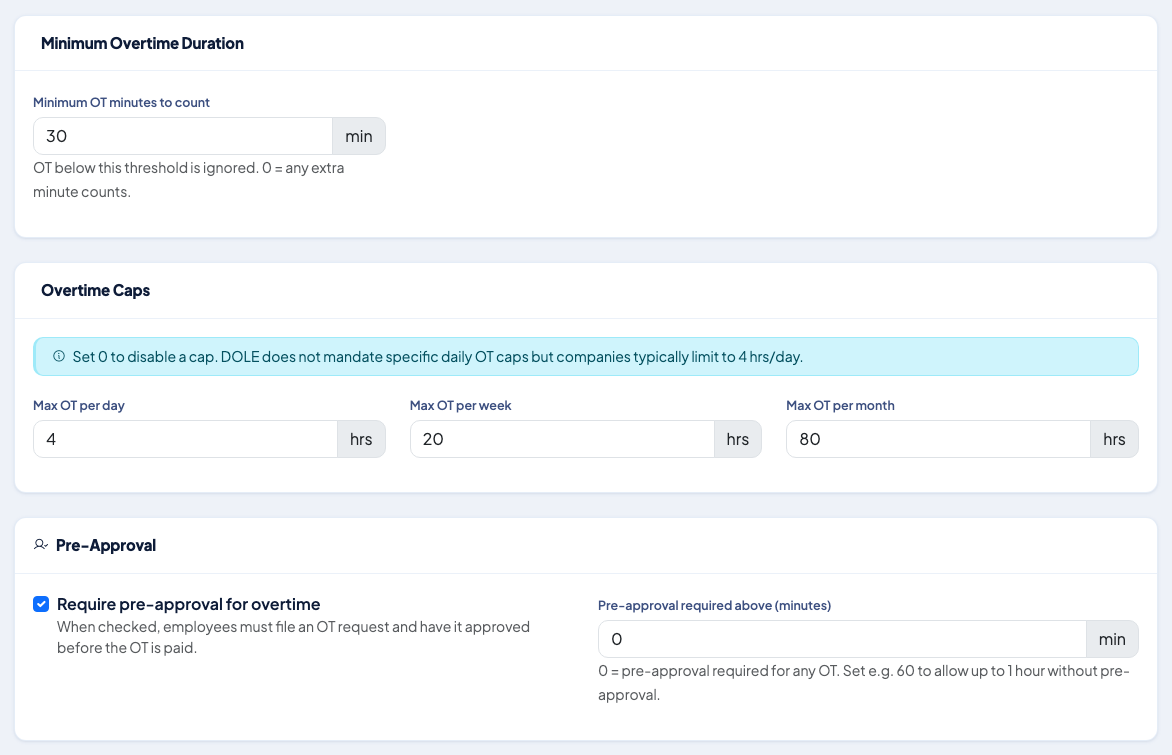 Minimum overtime, the daily, weekly and monthly caps, and pre-approval.
| Setting | What it does |
|---|---|
| Minimum OT minutes to count | Overtime below this length is ignored. Zero means every extra minute counts. |
| Max OT per day, week and month | A request that would take the employee over a cap is refused. Zero turns a cap off. |
| Require pre-approval | Overtime must be filed and approved before it is paid. You can set a number of minutes below which no approval is needed. |
| Deduct a meal break | Removes a meal break from long overtime. |
| Allow retroactive OT filing | Lets employees file for dates that have passed. See late overtime filing. |
When a request breaks a rule, the employee sees the reason on the same screen, for example: "Overtime cannot exceed 4 hours per day per company policy."
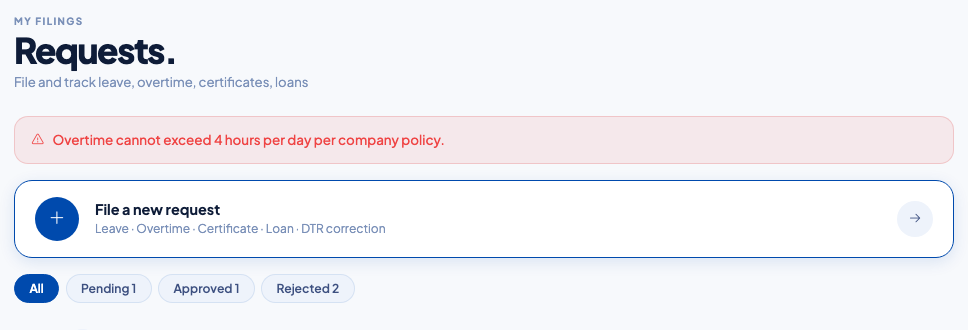 The request is refused and nothing is sent to the approver.
The weekly and monthly caps count the overtime that is already approved for that week or month.
A date that is already a full day of leave, pending or approved, is also refused: "There is approved leave on this date. Overtime cannot be filed for a day of leave."
Approve and review
Approvers act on the request from their approvals inbox. HR can review all overtime under Time, then Overtime, filtered by date range and status.
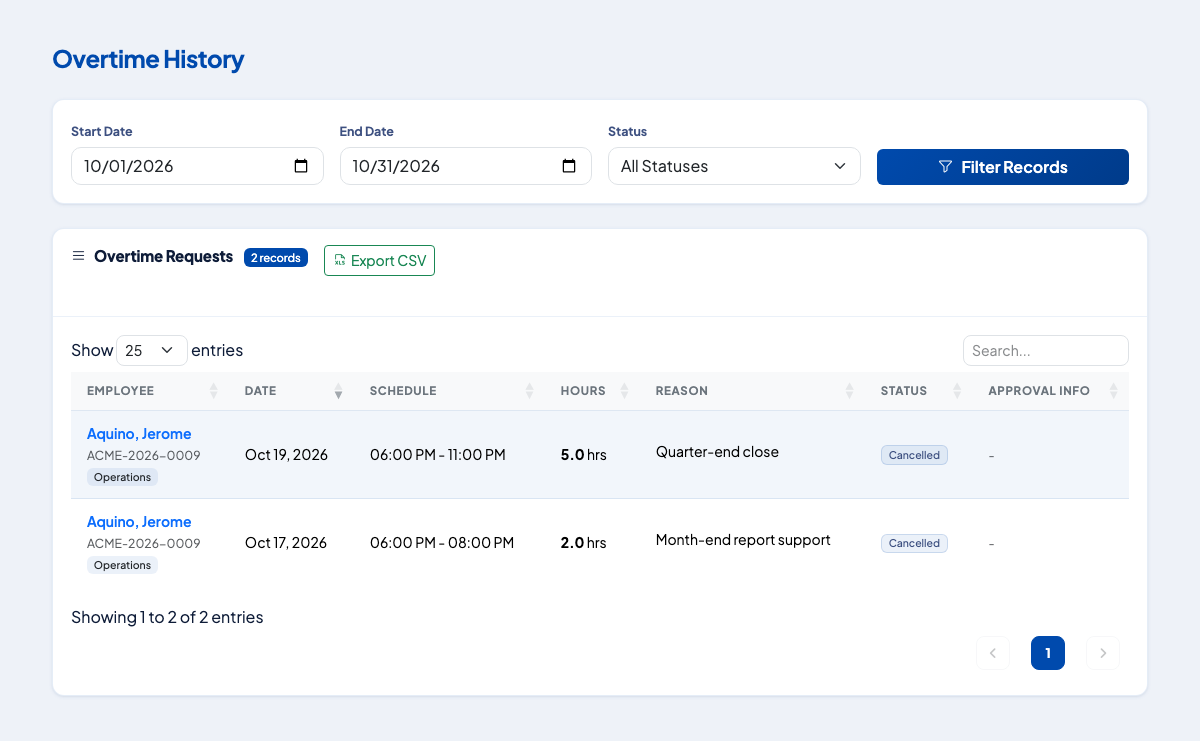 Every request with its hours, reason, status and approval information. Export it to CSV.
To change who approves overtime, edit the Overtime chain under Settings, then Workflows.
Questions people ask
Who approves an overtime request?
The approver set in the Overtime approval workflow, usually the employee's supervisor. The filing screen shows who the request will be sent to. If no workflow is configured, or the policy does not require pre-approval, the request is approved automatically.
What is the longest overtime an employee can file for one day?
Twelve hours is the absolute limit, and the Overtime Policy can set a lower daily limit. The default policy limit is 4 hours a day.
Can an employee file two overtime requests for the same date?
No. A second request for a date that already has a pending or approved request is refused.
Can probationary employees file overtime?
Only if the Probationary Policy marks them eligible for overtime pay.
Can overtime be filed on a day when the employee is on leave?
No. A date covered by pending or approved leave for the whole day is refused with the message that overtime cannot be filed for a day of leave. Half-day leave, and leave that was rejected or cancelled, do not block it.