
Assign shifts in bulk with the Weekly Planner
In the Weekly Planner, Bulk Assign puts one shift on many employees, Upload assigns shifts from a CSV or Excel file, and Copy Last Week repeats the previous week's schedule.
The Weekly Planner
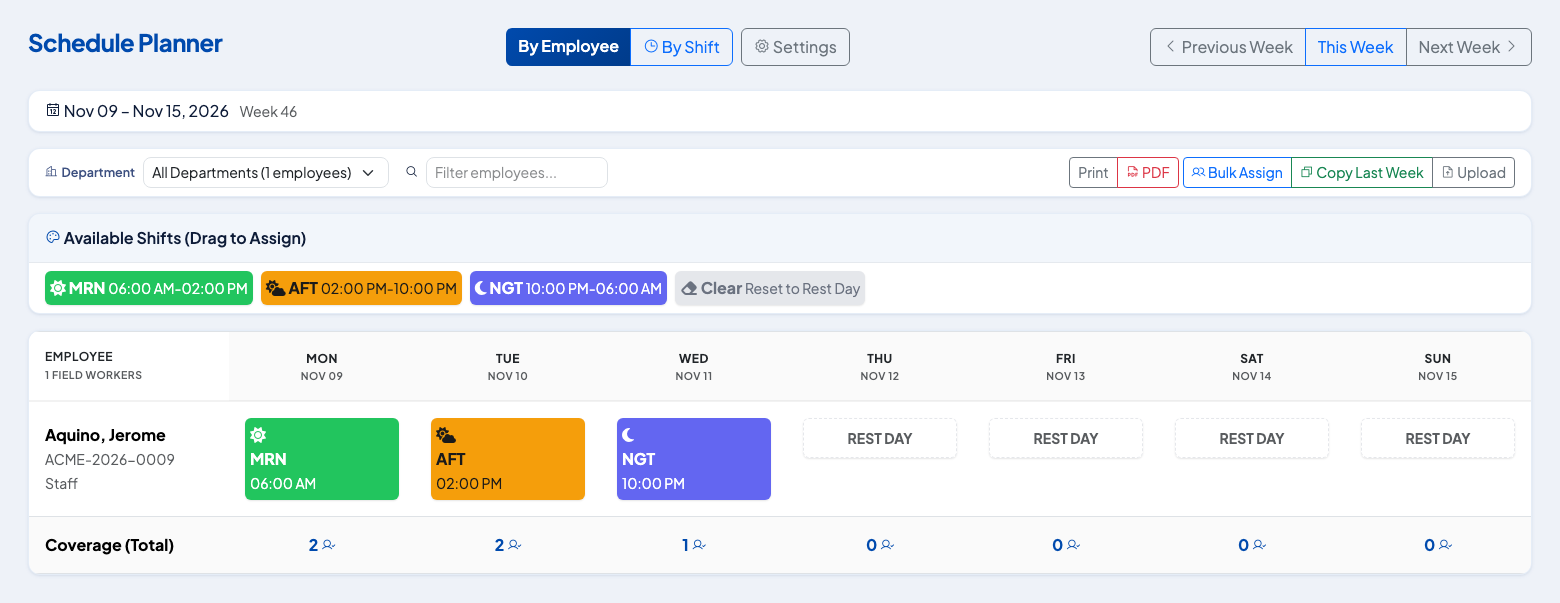
Open Time, then Weekly Planner. The planner shows each employee's shift for the week, the rest days, the clock-in and clock-out that were recorded, and the headcount covered each day.
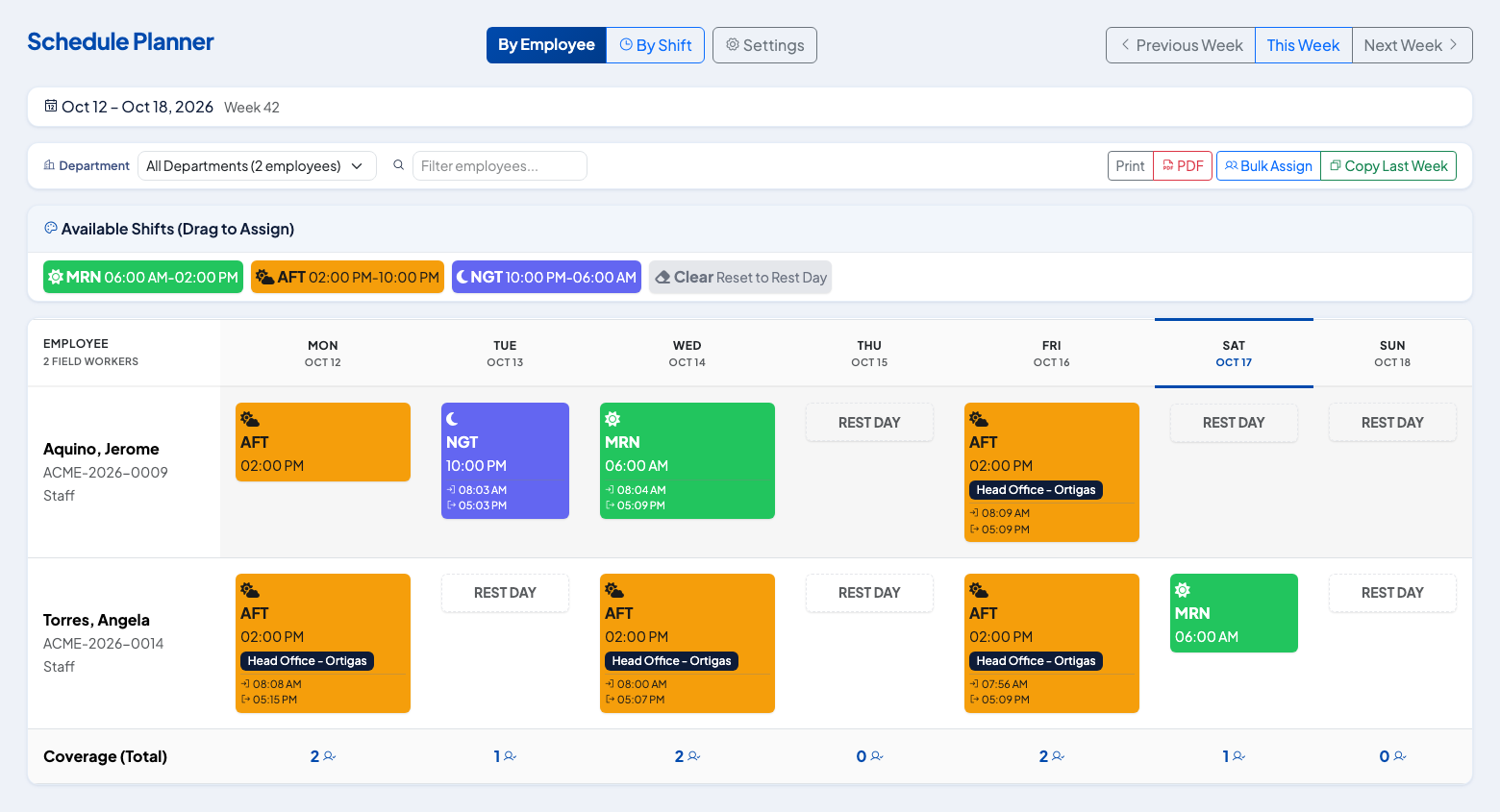 Drag a shift from Available Shifts onto a day, or use Bulk Assign for many employees.
Shifts come from the shift templates under Settings. Each template has a name, a code, and start and end times.
Bulk Assign
- Select Bulk Assign.
- Choose the Shift Template and, if needed, the Branch.
- Set the Start Date and End Date, and tick the Days of Week to cover.
- Choose the employees. Use the department filter and the search box, or Select All.
- Select Assign.
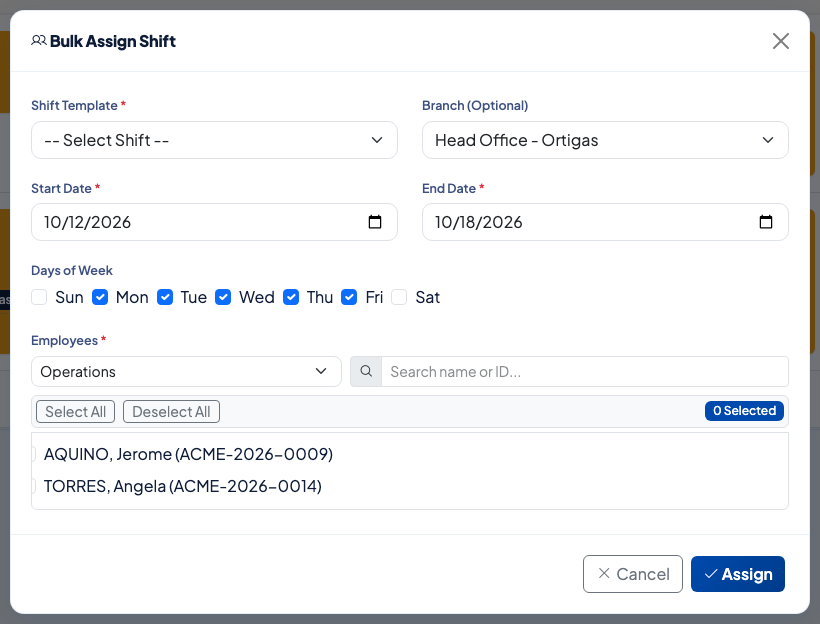 One shift, a date range, the weekdays and the employees in a single step.
Employees already assigned on those dates are updated to the new shift. Rest days that you want to keep should be left out of the weekday selection.
Upload a schedule file
For a large team, or a rotation worked out in Excel, upload the schedule instead.
- In the Weekly Planner, select Upload.
- Select Download CSV template. It has the columns EmployeeNumber, Date and Shift, with examples that use your own shift codes. The page lists every shift code. Use REST for a rest day.
- Fill in one row per employee per day and save the file as CSV or Excel. Write dates as 2026-10-26. A date written with slashes is read as month/day/year, so 10/26/2026 is October 26. Dates typed in Excel work too.
- Choose the file. Turn on Replace existing schedules if the file should overwrite days that already have a shift. Leave it off to keep what is there. Leave Recalculate attendance already recorded for these days on if the days have attendance that should follow the new shifts.
- Select Upload and import.
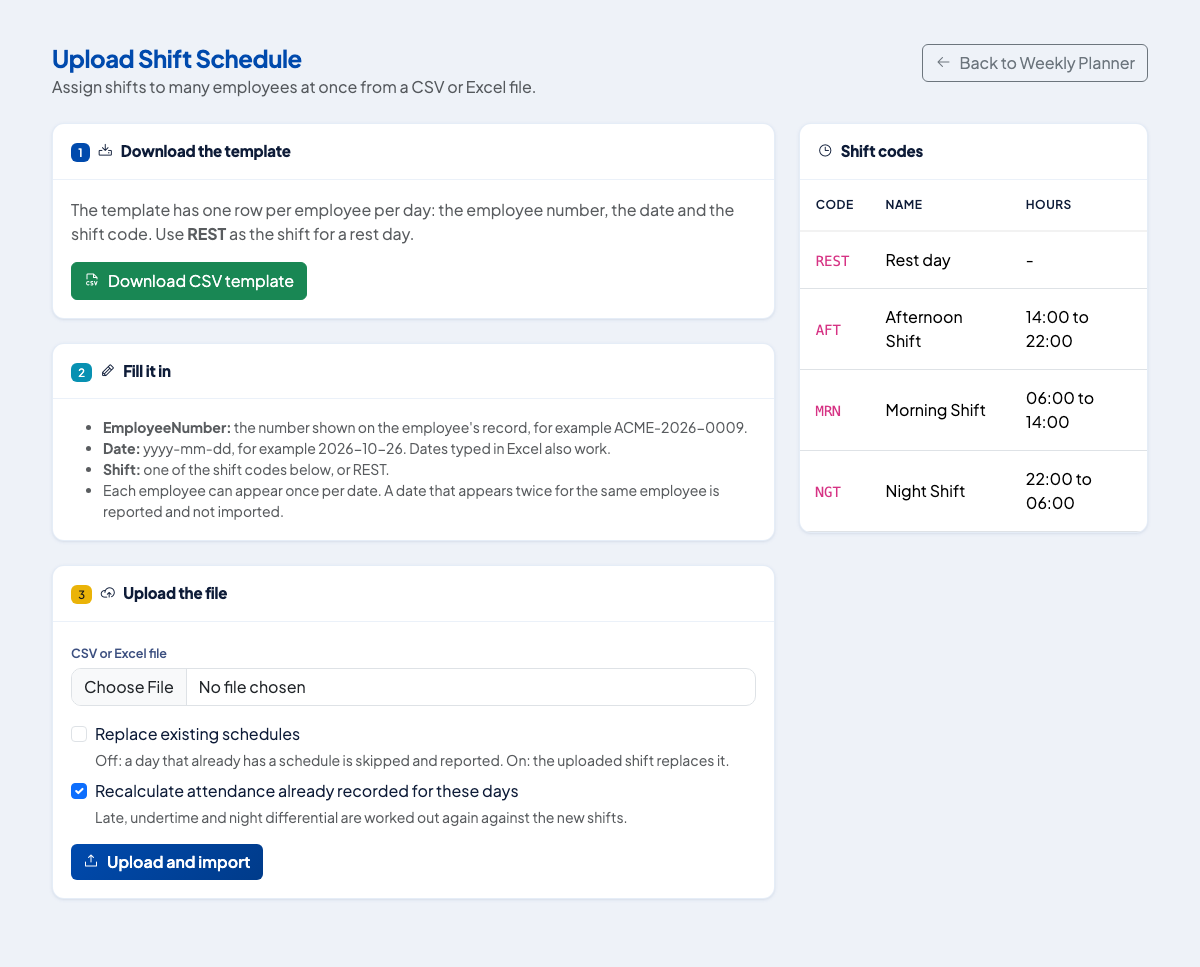 The template, the rules for each column and the shift codes for your company.
The result shows how many rows were in the file, how many schedules were saved (new and replaced), how many were skipped because the day already had a schedule, and how many were not imported because of a problem.
| Problem found | What you see |
|---|---|
| Employee number not found, or the employee is not active | The row is listed with the reason |
| Shift code that does not exist | The row is listed, with a reminder to use a code from Settings or REST |
| Date that cannot be read | The row is listed with the accepted format |
| Same employee and date twice in the file | Both rows are listed as conflicting and neither is imported |
| Day already scheduled, with Replace turned off | The row is skipped and listed |
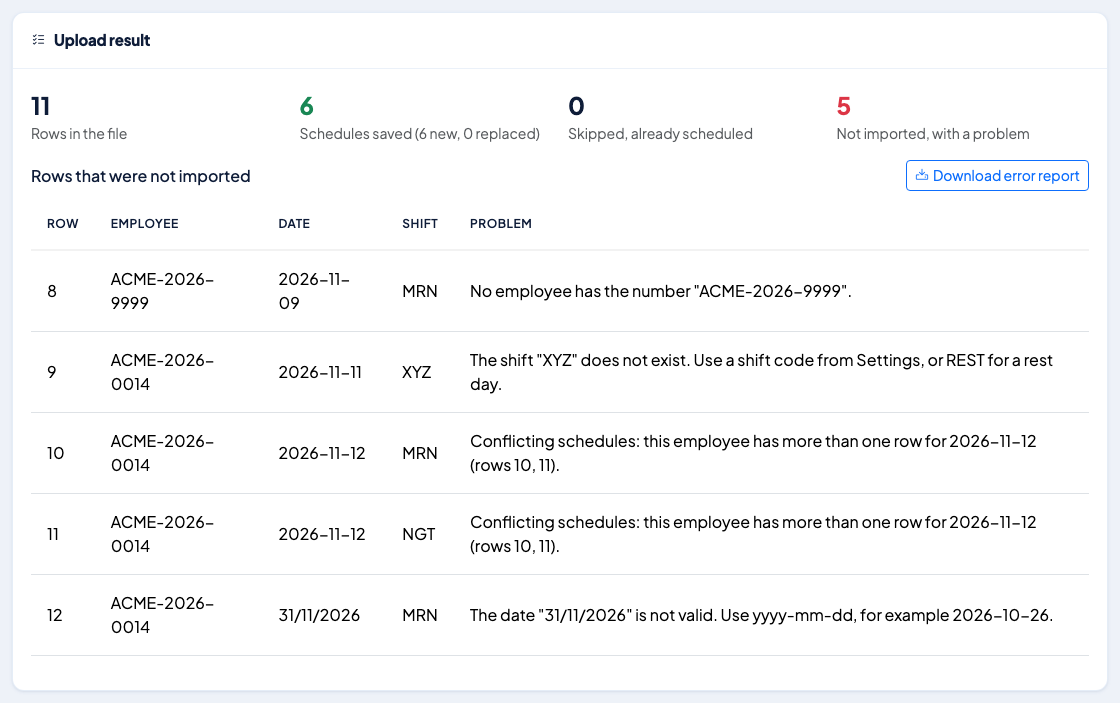 Six rows saved. Five were not imported, each with its row number and the reason.
Rows with a problem never stop the valid rows from being saved. Select Download error report to get every problem row as a CSV, fix them, and upload just those.
Each upload is recorded in the audit trail with who uploaded it, when, and how many rows were saved, skipped and rejected.
 The uploaded shifts appear in the planner straight away, and employees see them under My Schedule.
Copy last week
Select Copy Last Week to repeat the previous week's assignments. If the previous week has no assignments the planner tells you so.
After you change a schedule
Employees see their shifts under My Schedule in the Employee Portal. If attendance was already saved for those dates, see Recalculate attendance.
Questions people ask
Can I assign the same shift to many employees at once?
Yes. Use Bulk Assign, pick the shift, the date range, the weekdays and the employees.
What happens to employees who already have a shift on those dates?
Bulk Assign replaces the existing assignment for each selected employee and date.
Can I copy a schedule from the week before?
Yes. Copy Last Week repeats the previous week's Monday to Friday assignments into the week you are viewing.
Can I upload a schedule from Excel?
Yes. Planner, then Upload, accepts a CSV or Excel file with the employee number, the date and the shift code. The template lists your shift codes.
What happens to rows with a mistake?
Each row is checked on its own. Valid rows are saved, and rows with a problem are skipped and listed with the reason, in the page and in a downloadable error report.
How do I see who is working a given shift?
Switch the planner to By Shift.