
Retroactive pay adjustments after a locked payroll period
When a DTR correction, overtime approval, or salary change is approved after the pay period is already locked and disbursed, OneHRIS queues the payable difference as a retroactive adjustment in the next open payroll run.
How retro adjustments work
When a locked pay period is re-examined because a correction was approved after disbursement:
- OneHRIS computes the difference between the original pay and the corrected amount.
- The difference is queued as a Retroactive Adjustment item attached to the next open payroll run.
- HR sees the item in Payroll, then Adjustments, labeled with the original period and the reason.
- The adjustment is included automatically in the next payroll computation unless HR removes it.
- The employee's payslip shows the retro line itemized separately from the current period's earnings.
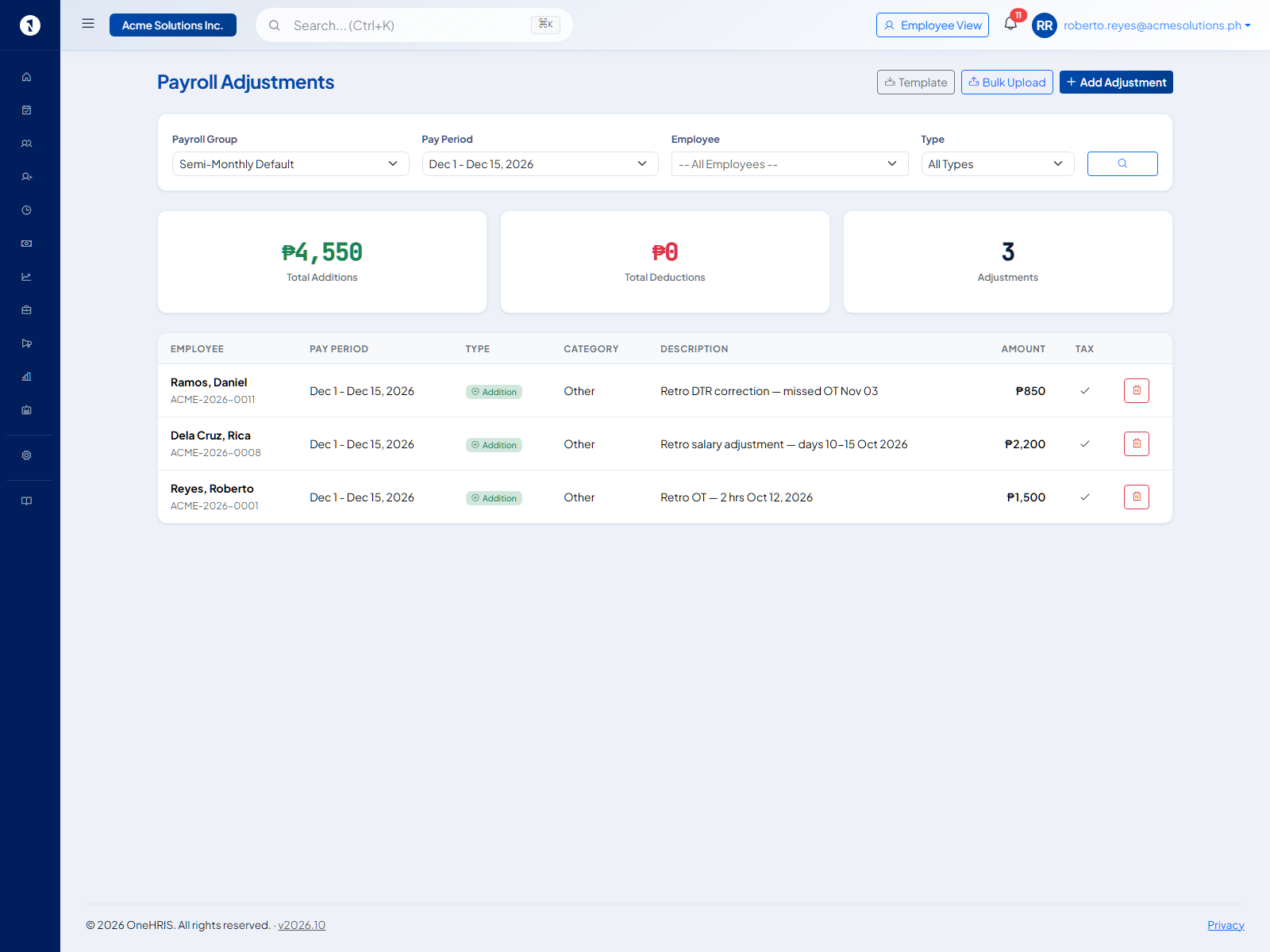
Retroactive overtime
An employee works 3 hours of overtime on the 12th. Their supervisor approves it on the 20th, after the 1st-to-15th payroll has already been disbursed.
OneHRIS computes the overtime amount (3 hours × overtime rate) and queues it as a retro item in the 16th-to-31st run. The employee sees the payment on the next payslip labeled Retro OT — [date of work].
To review pending retro overtime: open Attendance, then OT Discrepancy. See unapproved overtime and extra hours.
Retroactive salary adjustment
A salary increase is effective on the 10th of the month but the payroll for the 1st-to-15th period was already processed at the old rate.
OneHRIS calculates the pay difference for days 10 to 15 (new rate minus old rate, times the number of days) and queues it as a retro salary adjustment in the next run.
To initiate: open the employee's contract, select Update Salary, set the effective date, and save. OneHRIS detects the locked-period overlap and creates the retro item automatically.
Preventing retro adjustments
Most retro adjustments are avoided by:
- Approving overtime and DTR corrections before the payroll cut-off
- Finalizing salary changes before the period they apply to begins
- Using the Pending filter in the OT and DTR screens before each payroll run
See run payroll for the pre-run checklist.
Questions people ask
What triggers a retroactive adjustment?
A DTR correction approved after the affected period was locked, an overtime request approved retroactively, a salary change with an effective date inside a past locked period, or any payroll adjustment added after disbursement.
Does OneHRIS automatically calculate the retroactive amount?
For DTR corrections and approved overtime, yes — OneHRIS computes the difference between what was paid and what should have been paid. For manual adjustments, HR enters the amount.
Can a retroactive adjustment be negative?
Yes. If an employee was overpaid in a prior period (for example, a pay error), the retro adjustment is a deduction in the current period.