
Fix missing or wrong time logs
Employees file a DTR correction for a missing or wrong time, an approver reviews it, and the approved times replace the original and recalculate late and undertime. HR can also add a manual entry or upload a DTR file.
File a correction
- Open Time, then Attendance History in the Employee Portal, and select Correction. You can also use Requests and choose DTR Correction.
- Pick the date. The form shows the time in and time out that were recorded.
- Choose the correction type: Missing Time-In, Missing Time-Out, Wrong Time (Both) or Missing Break.
- Enter the correct times and the reason, then review and submit.
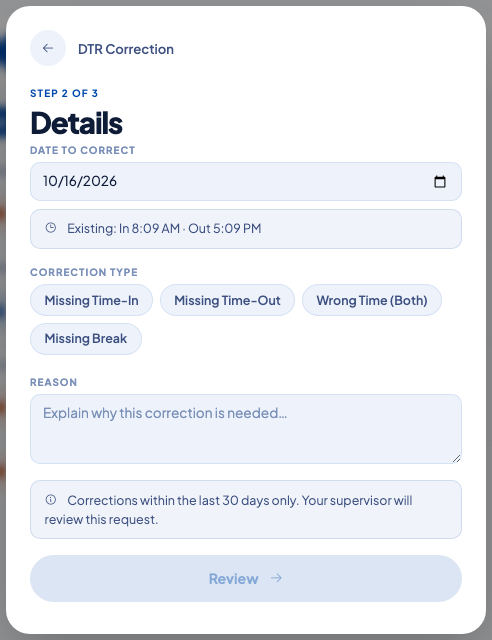 The recorded times are shown so the employee can see what is being corrected.
The employee can see recent days and their status under Attendance History.
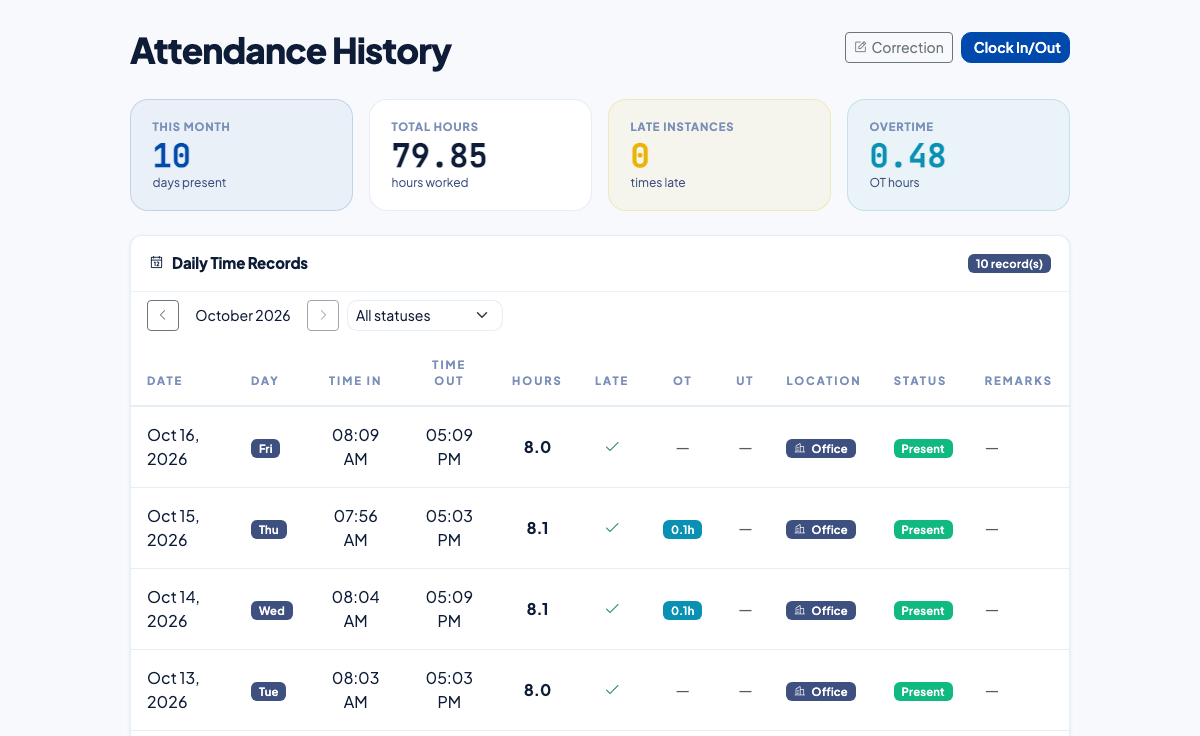 Time in, time out, hours, late, overtime and status for each day.
Approve a correction
Approvers see the request in their approvals inbox. HR can see every request under Time, then DTR Corrections, in the Pending, Approved and Rejected tabs.
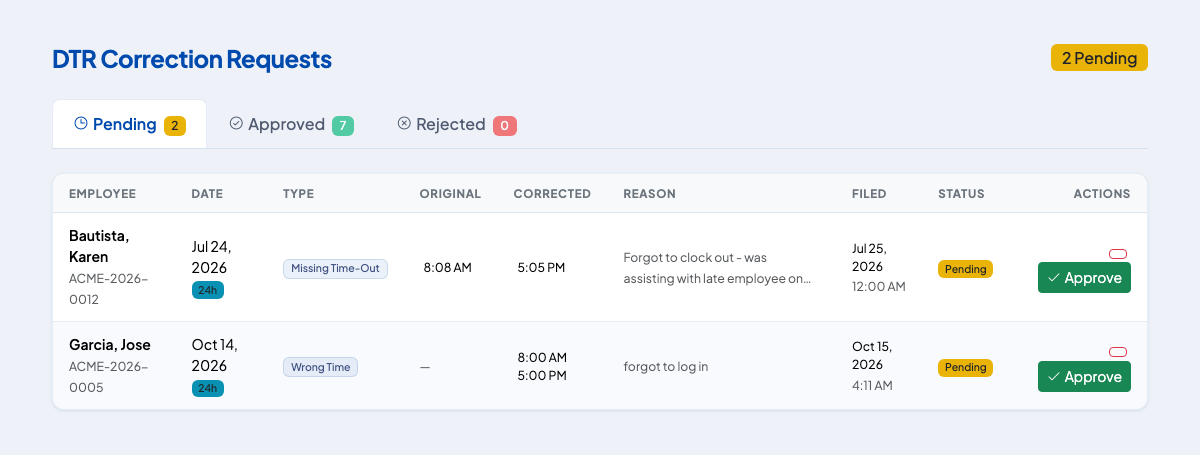 Original and corrected times with the reason and the date filed.
When a request is approved, the corrected times are saved on the attendance record, the record is marked as corrected, and late minutes, undertime, status, break and night differential are recomputed.
Enter or import time yourself
Open Time, then Attendance Logs. Use Manual Entry to add or change a record with a reason, or Upload DTR (CSV) to bring in time records from another system. Filter by date range to find the records you need.
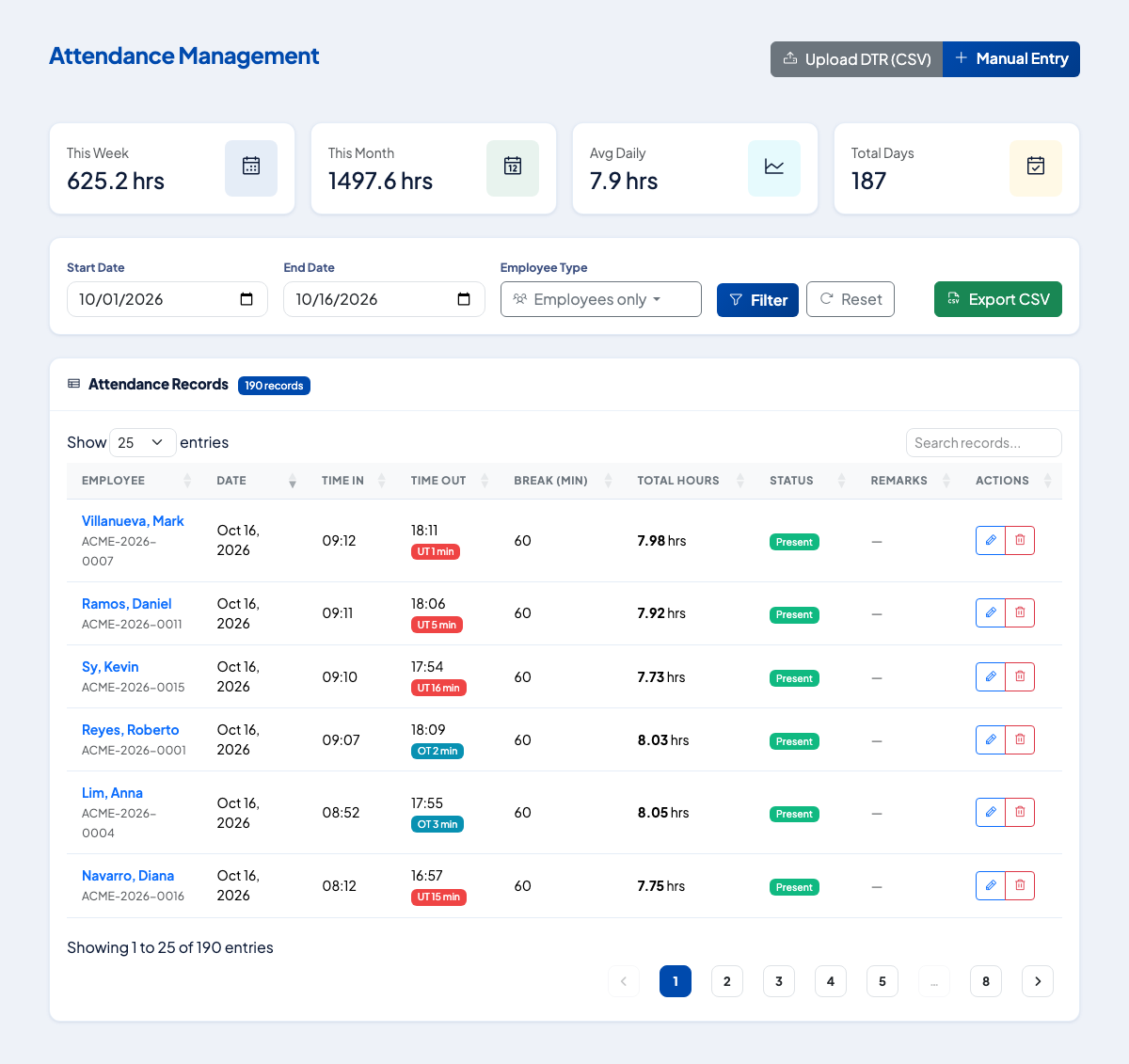 Late and undertime minutes are shown on each record.
See also Review attendance logs and Approve or reject DTR corrections.
Questions people ask
How far back can an employee file a correction?
Up to 30 days back, and not for a future date.
What can be corrected?
Missing time in, missing time out, wrong time (both), and missing break.
Does an approved correction change late and undertime?
Yes. Late minutes, undertime and the attendance status are recomputed from the corrected times against the employee's schedule.
What if the day is already in a processed payroll period?
The approval warns HR that the period was processed before the correction. It does not change the finished run, so HR decides whether to process the period again.
What if the biometric device was down?
HR adds the attendance with Manual Entry, with a reason, or uploads a DTR file.