
File leave for an employee and cancel approved leave
HR can file a leave request on behalf of any employee, and can cancel an approved leave request as long as the payroll period for those dates has not been locked.
File leave for an employee
- Open Time, then Leave Requests.
- Select Create Request.
- Choose the Employee, the Leave Type, the Start Date and End Date, and whether the leave is Full Day or Half Day.
- Enter the Reason.
- Select Save.
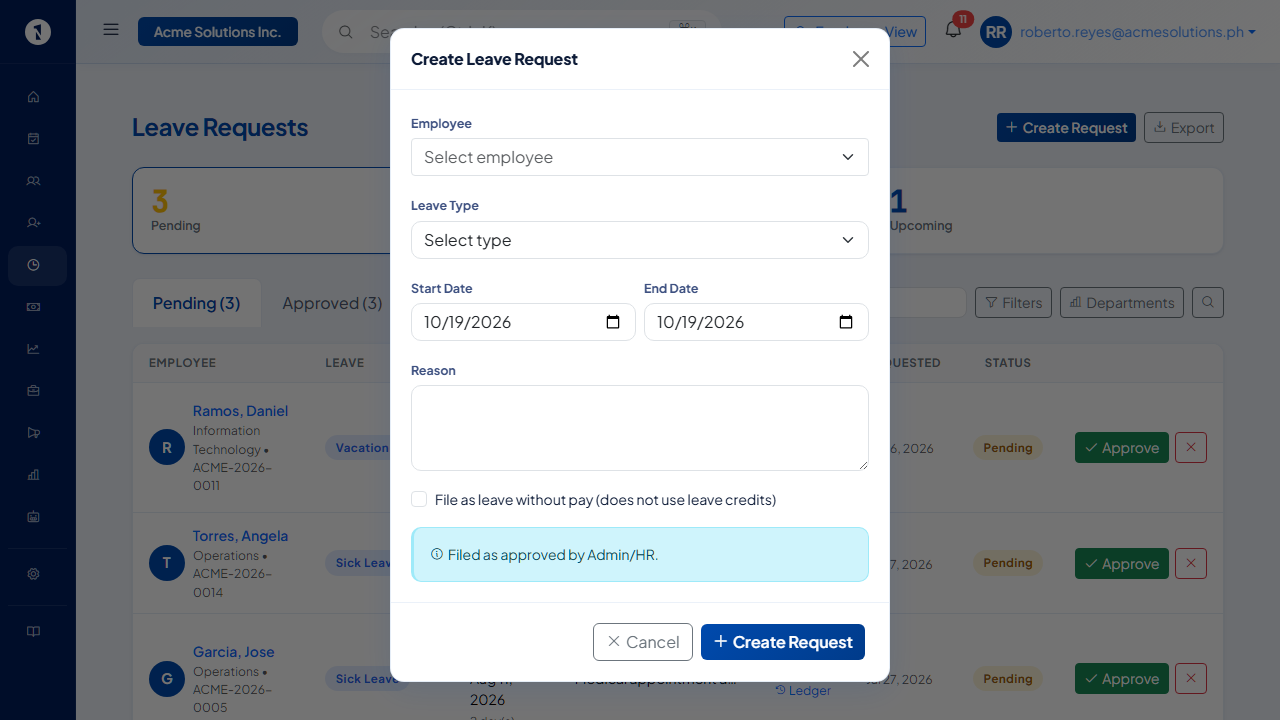 HR-created requests are filed as approved immediately — the form shows this note at the bottom.
The request is saved as Approved and the credits are deducted from the employee's balance.
Cancel approved leave
- Find the leave request under Leave Requests on the Approved tab.
- Select the request to open it.
- Select Cancel and confirm.
Credits are returned to the employee's balance and the employee is notified.
Leave that falls in a payroll period that is Locked cannot be cancelled. Unlock the payroll period first, then cancel the leave. See run payroll.
Work suspension and bulk cancellation
When HR suspends a work day under Settings, then Work Suspensions, approved leave on that date can be cancelled in bulk from the same screen. This avoids going through each request one by one.
Questions people ask
Why would HR file leave for an employee?
When an employee is not able to file their own request, for example when they are in the field without access, or when HR needs to record a retroactive leave.
Does leave filed by HR go through the approval workflow?
Not by default. HR-filed leave is created as approved. Set up the leave workflow if it should go to an approver even when filed by HR.
What if the leave dates are in a locked payroll period?
The leave cannot be cancelled until the payroll period is unlocked. An approved leave can still be cancelled before payroll is locked.
Can HR file half-day leave?
Yes. Choose Half Day and select whether it is the morning or afternoon.