
Add a new employee
Create an employee record under People, then Employees. The required fields are the name, date of birth, gender, civil status, email, contact number and hire date, plus the employee number unless your company generates it. Branch, department and position are set afterwards, so you can create the record now and complete it later.
Create the record
- Open People, then Employees, and select Add Employee.
- Fill in the required fields, marked with a red asterisk: first name, last name, date of birth, gender, civil status, email, contact number and date hired. Enter the employee number too, unless the form shows an auto-generated number.
- Select Save.
That is all the Add Employee form needs. Branch, department, position and everything else can be filled in afterwards.
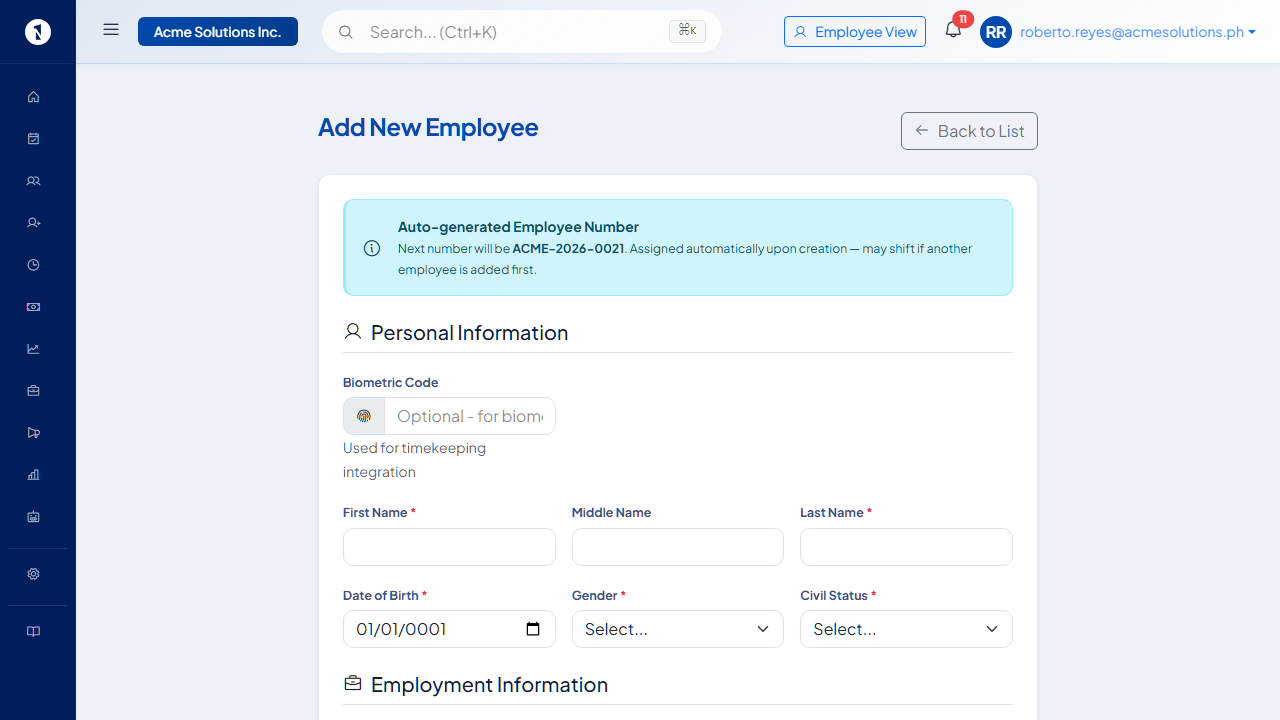 When automatic numbering is on, the form shows the next employee number. Only the identity fields are required here; branch, department, government IDs and bank account are added afterwards with Actions, then Edit Employee.
Complete the record
After saving the basic record, open the employee record, select Actions, then Edit Employee, and complete these sections.
| Section | What to fill in |
|---|---|
| Personal Information and Contact Information | Name, birthdate, civil status, address, contact number |
| Employment Information | Branch, department, immediate supervisor |
| Government & Compliance | SSS number, PhilHealth number, Pag-IBIG number, TIN |
| Bank Information (for Payroll) | Bank name and account number, needed for salary crediting |
Upload documents such as the 201 file in the Files tab, under Employee 201 Documents.
Missing government numbers are a common reason for rejected remittance reports. Add them before the first payroll run.
Set up the employment contract
The contract sets the position, work schedule and salary. Without an active contract, the employee cannot be included in payroll. See set up an employment contract.
Send the login invitation
Once the record and contract are ready, open the employee record and select Send Account Invitation. An email goes to the work address with a link to set the password and access the Employee Portal.
Add employees in bulk
For a large batch, download the import template under People, then Employees, then Import. Fill in one row per employee and upload. Valid rows create records; rows with problems are listed with the reason. See import employees from a CSV file.
Questions people ask
Does adding an employee send them a login invitation?
Not immediately. Send the invitation separately with Send Account Invitation on the employee record once the record is ready.
What is the employee number?
A unique identifier for the employee in your company. It appears on payslips and government reports. If your company has automatic numbering turned on, the form shows the next number and assigns it when you save. Otherwise you enter it. An existing number can be changed later with Change Employee Number on the employee record.
Do I need to choose a branch, department or position when I add an employee?
No. Only the basic identity fields (name, date of birth, gender, civil status, email, contact number, hire date, and the employee number if your company does not auto-generate it) are required on the Add Employee form. Branch and department are set under Actions, then Edit Employee. Position is set when you create the employment contract. You can save the record first and come back to these later.
Can I create the record in steps?
Yes. Save the basic identity information first, then add the branch, department, government numbers, bank details, documents and contract later. The record stays usable in list views even without those details.
Can I import many employees at once?
Yes. Use the employee import under People, then Employees, then Import. See import employees from a CSV file.