
Import employees from a CSV file
Upload a CSV file to add many employees at once. Employee Number is required and must be unique, and the results show every row that failed.
Available on Pro Enterprise
Open the import
Go to Employees and select Import. The page is titled Import Employees.
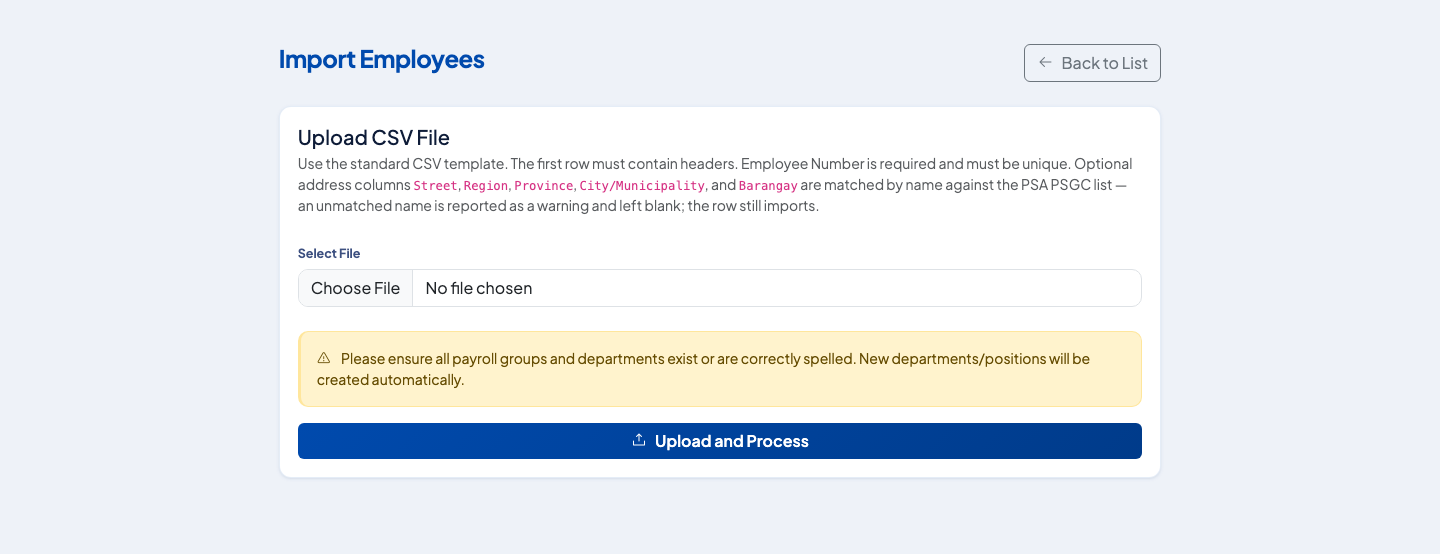 The upload page lists the rules for the file before you choose it.
Prepare the file
- Save the file as CSV. Only CSV files are accepted.
- Put the column headers in the first row. Use your company's standard employee template.
- Employee Number is required on every row and must be unique.
- The optional address columns are Street, Region, Province, City/Municipality and Barangay. They are matched by name against the PSA PSGC list.
Before you upload
The page reminds you to check that payroll groups and departments exist or are spelled correctly. New departments and positions are created automatically from the file, so a misspelled department becomes a new department. Check the spelling before you upload, not after.
Upload and read the result
- Choose the file under Select File.
- Select Upload and Process.
- Read Import Results. It shows how many rows were Successful and how many Failed, and lists each error below.
A row that fails does not stop the other rows from importing. Fix the failed rows in your file and upload them again. Do not re-upload rows that already succeeded, because their employee numbers now exist.
Address warnings
If an address name does not match the PSGC list, the row still imports and the address field is left blank. The warning tells you which one, so you can fill it in on the employee record.
Questions people ask
What file type can I upload?
A CSV file. Other formats are rejected.
Which column is required?
Employee Number. It must be filled in and unique. The first row of the file must contain the column headers.
What happens if a department or position in the file does not exist?
New departments and positions are created automatically. Payroll groups are not, so make sure they exist and are spelled correctly first.
What if an address name does not match?
The optional address columns are matched by name against the PSA PSGC list. A name that does not match is reported as a warning and left blank. The row still imports.