
Send a memo that employees must sign
Create an announcement in Settings > Announcements and turn on Employees must sign this memo. Each employee you target reads the memo, types their name and draws their signature in the Employee Portal or mobile app. HR tracks who has signed on the memo's Signatures page, and each signed copy is filed as a PDF in the employee's 201 documents.
Use a signed memo when you need proof that each employee received and accepted a policy, for example a new safety rule, a code of conduct update or a change in work hours. The memo goes out as an announcement, and each targeted employee signs it in the Employee Portal or the mobile app.
You need access to Settings > Announcements to send memos and to see the signatures.
1. Pick the statement employees sign
Employees don't just tick a box. They sign a statement, for example: "I, Ryan Gonzales, agree to the terms set out in memo HR-2026-014." You write these statements once as templates and pick one for each memo.
Open Settings > Announcements and select Acknowledgement templates.
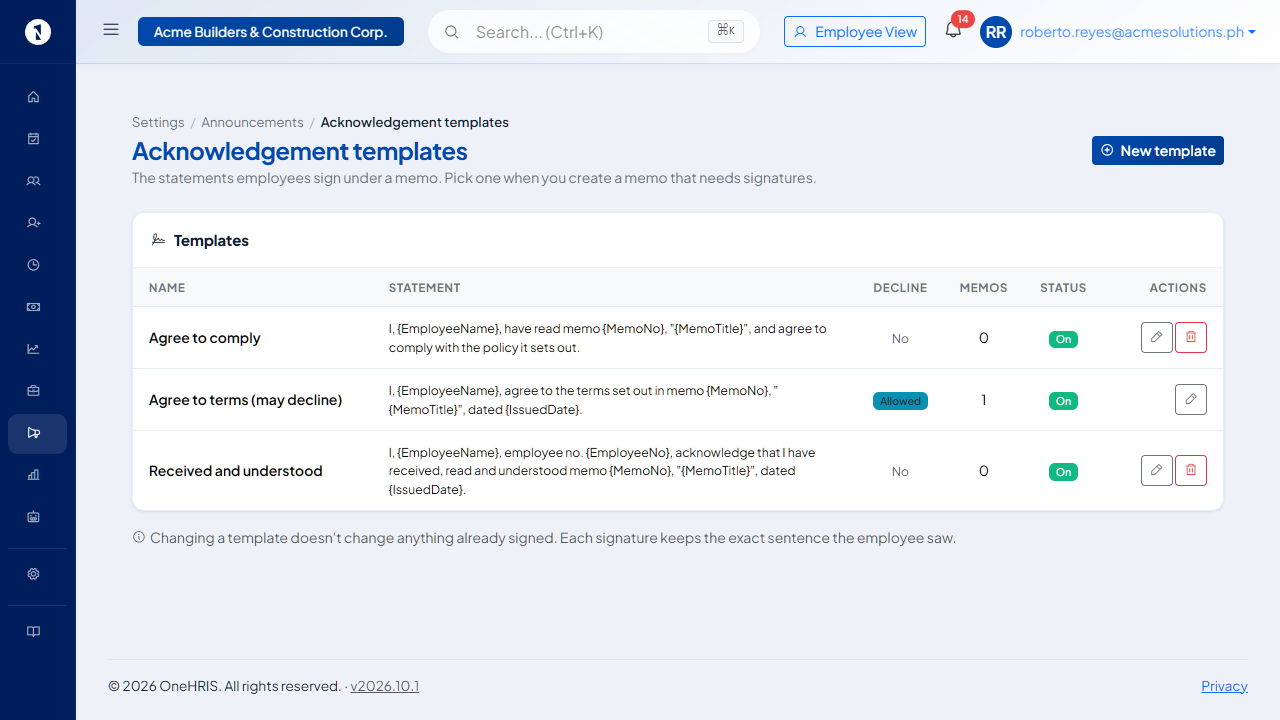
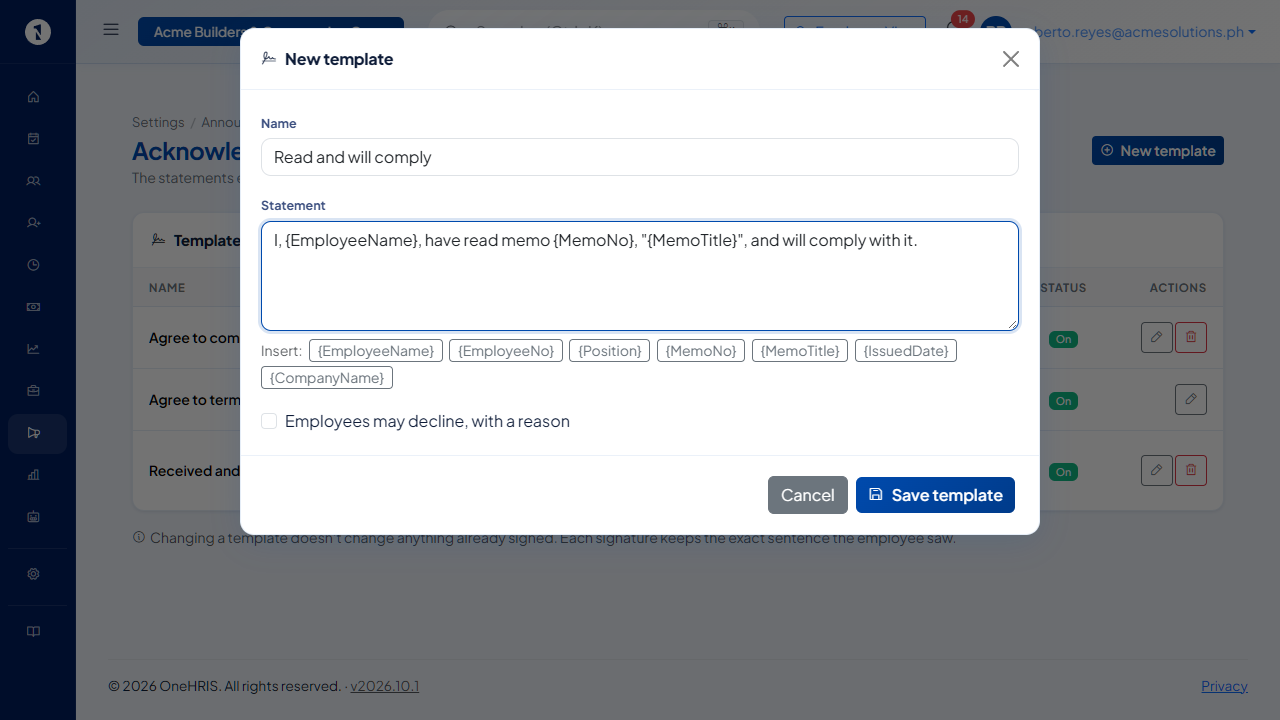
Select New template, give it a name and write the statement. Select a placeholder below the box to insert it. OneHRIS fills it in for each employee when they sign.
| Placeholder | Filled in with |
|---|---|
{EmployeeName} |
The employee's full name |
{EmployeeNo} |
Their employee number |
{Position} |
Their position |
{MemoNo} |
The memo number |
{MemoTitle} |
The memo title |
{IssuedDate} |
The date the memo was issued |
{CompanyName} |
Your company name |
Tick Employees may decline, with a reason if this kind of memo can be declined. Changing a template later never changes a memo that has already been signed. Each signature keeps the exact sentence the employee saw.
2. Create the memo
On Settings > Announcements, select New Announcement. Fill in the title and content, and add an attachment if the full policy is in a separate file.
Choose who signs with Target Departments and Target Positions. An employee is asked if they are in one of the selected departments and one of the selected positions. Leave a list blank to include all of them.
Then turn on Employees must sign this memo:
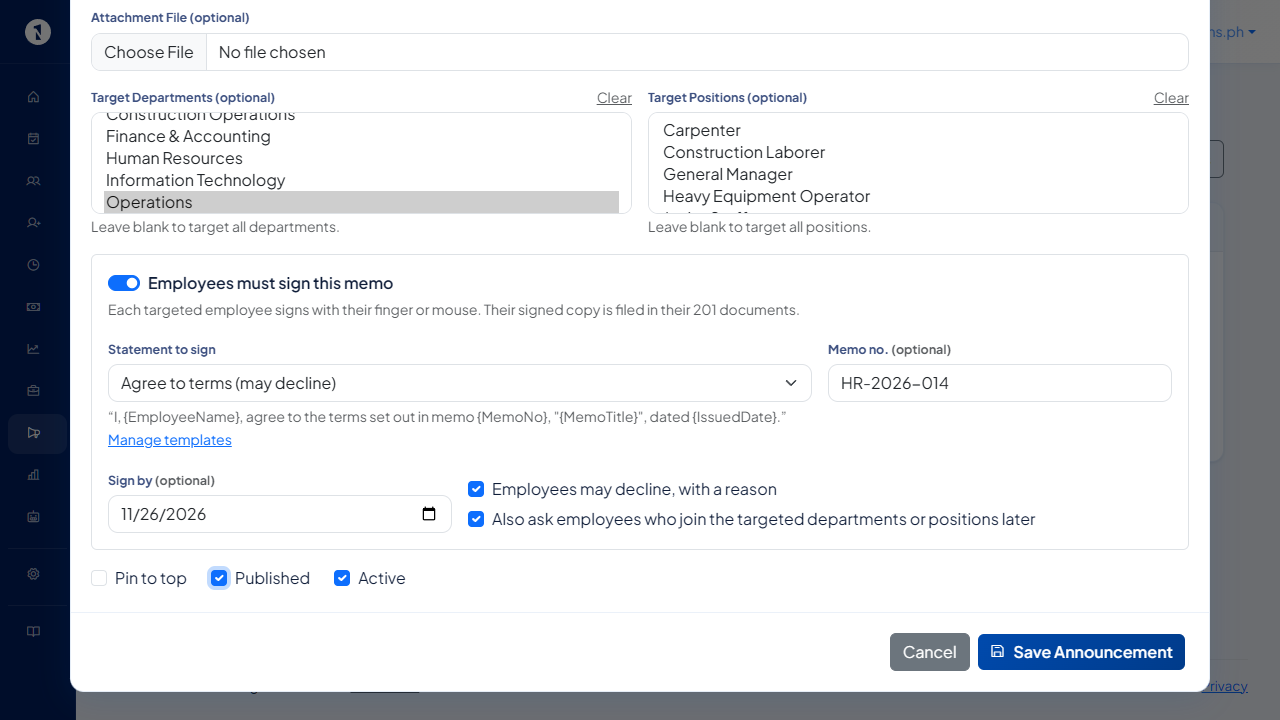
- Statement to sign: the template from step 1. A preview of the statement is shown below it.
- Memo no. (optional): shown on the memo, the statement and the signed copy, for example HR-2026-014.
- Sign by (optional): the due date. It sets the reminder schedule, and late signatures are marked overdue.
- Employees may decline, with a reason: comes from the template; you can change it for this memo.
- Also ask employees who join the targeted departments or positions later: new hires and transfers into those departments or positions are asked too.
Tick Published and select Save Announcement. The targeted employees are asked to sign straight away. The memo shows on their Home page and in their Inbox, and those using the mobile app get a push notification. An unpublished memo asks no one until you publish it.
3. Track who has signed
The announcements list shows how many employees have signed each memo and how many declined.

Select the signature count to open the memo's Signatures page.
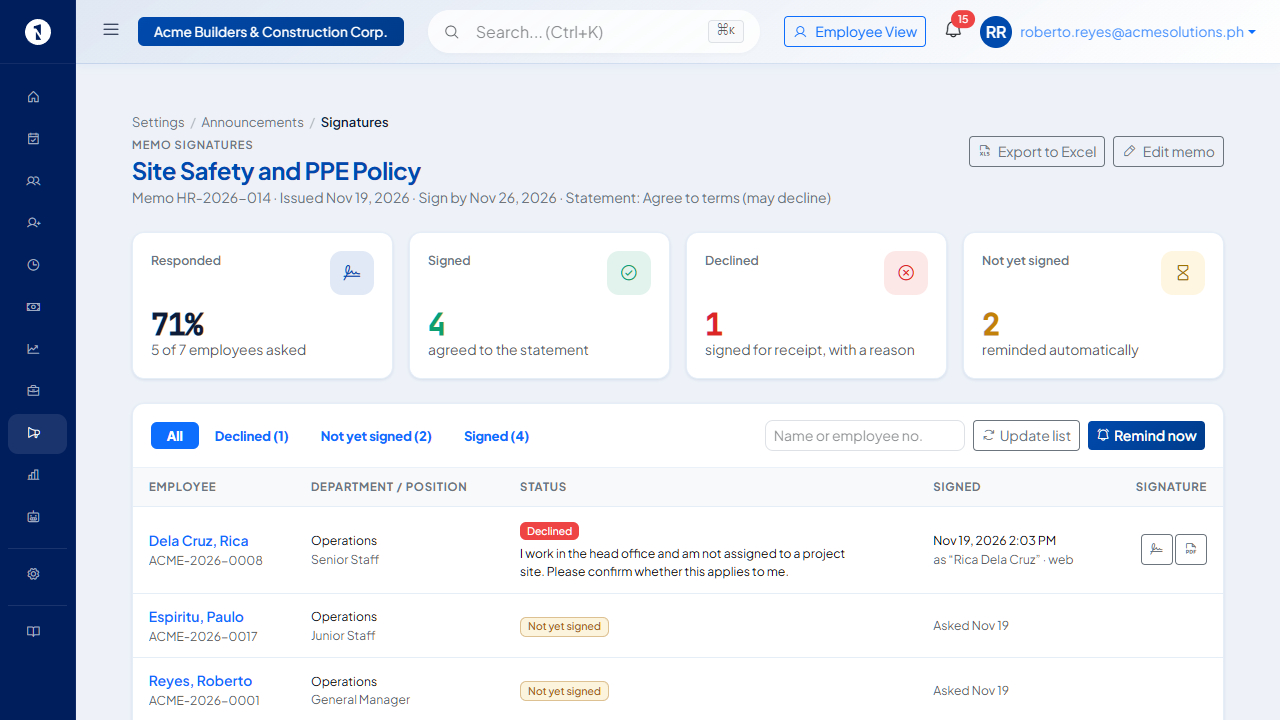
From here you can:
- Filter by Signed, Declined or Not yet signed, or search by name or employee number.
- Read each decline reason in the Status column.
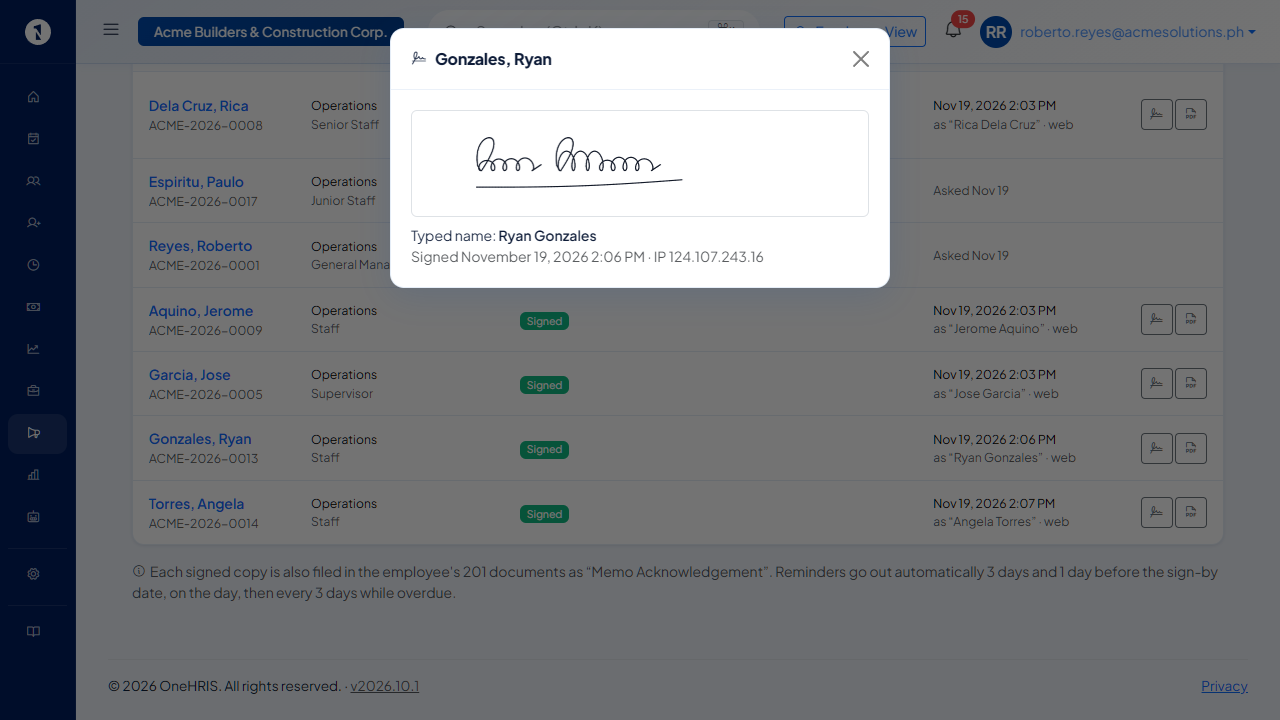
- Select the signature icon to see the drawn signature, the typed name, when it was signed and the IP address it was signed from.
- Select the PDF icon to download the employee's signed copy.
- Select Remind now to remind everyone who hasn't signed. An employee is never reminded twice on the same day.
- Select Update list to add active employees who now match the memo's departments and positions.
- Select Export to Excel for the full list: when each employee was asked and signed, the typed name, decline reasons, web or mobile app, IP address and reminders sent.
Reminders
Employees who haven't signed are reminded automatically with a notification in OneHRIS and on the mobile app:
| Memo | Reminders |
|---|---|
| With a sign-by date | 3 days before, 1 day before and on the date, then every 3 days while overdue (up to 10) |
| Without a sign-by date | Every 3 days after the memo is published (up to 5) |
Declined memos
If declining is allowed, an employee can sign and decline with a reason. Their signature still confirms they received the memo. The decline reason shows on the Signatures page and on their signed copy, so HR can follow up.
The signed copy
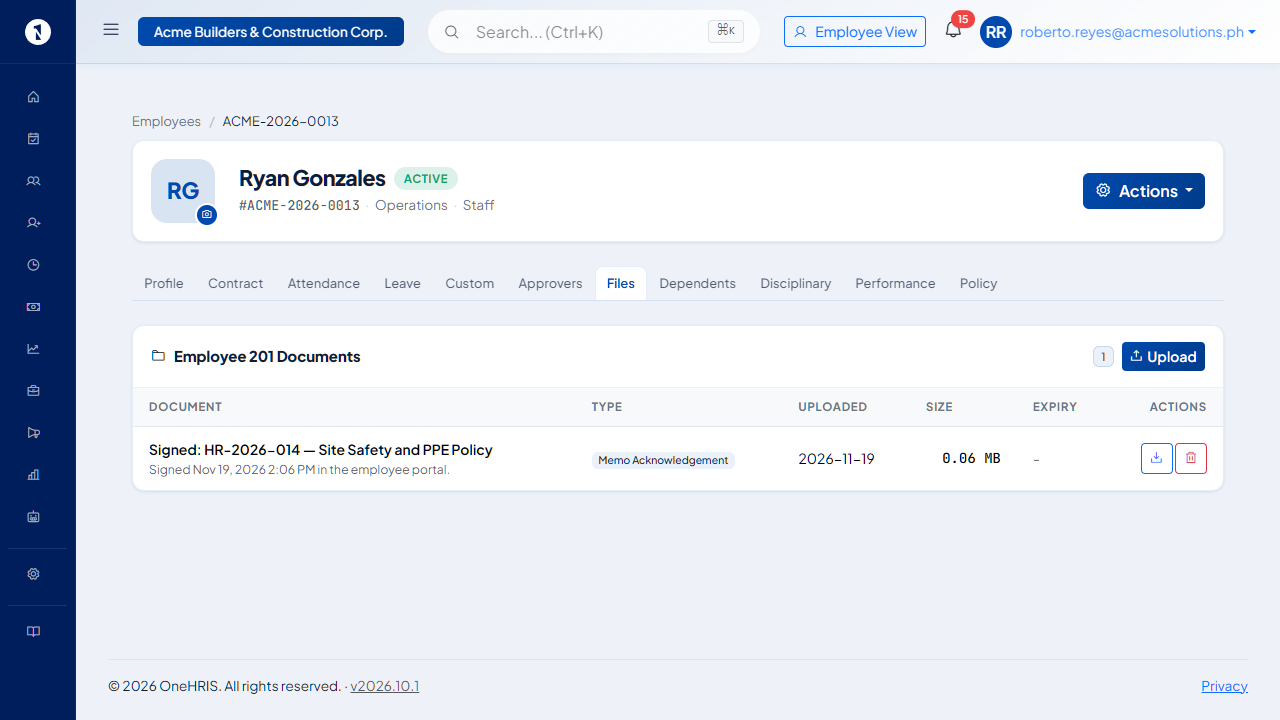
Each time an employee signs, OneHRIS files a PDF in their 201 documents (Employees > the employee > Files) as a Memo Acknowledgement.
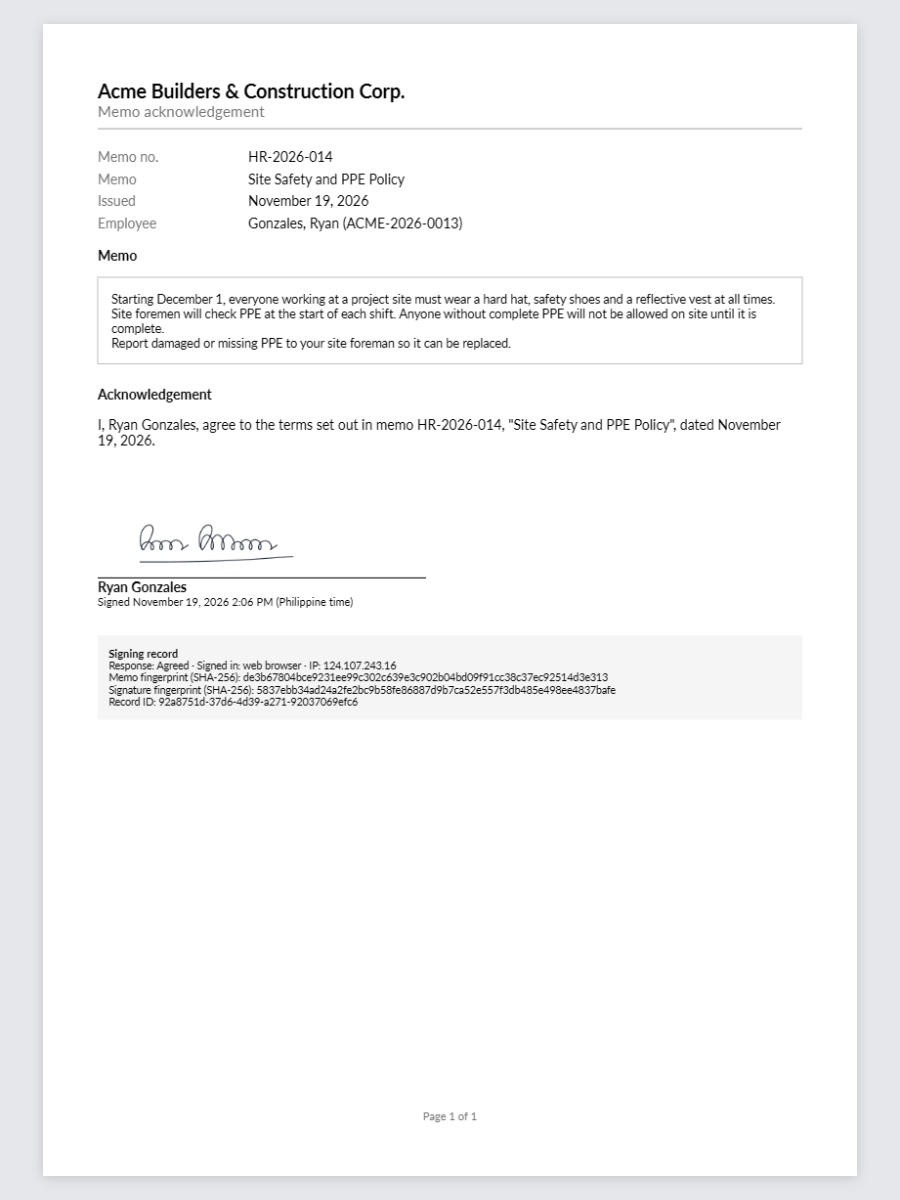
The signed copy contains the memo, the statement the employee signed, their signature and typed name, and a signing record:
- the date and time signed, in Philippine time
- whether they agreed or declined, and the reason
- whether they signed in a web browser or the mobile app, and the IP address
- a fingerprint of the memo and of the signature, which show neither was changed after signing
The employee can download the same copy from the memo in their portal. See Sign a memo in the Employee Portal.
Changing a memo after people sign
Once anyone has signed, the memo's title, content, attachment, memo number, statement and decline setting are locked. Every signature then refers to exactly the same text. You can still change the sign-by date and whether employees who join later are asked.
To change the policy, create a new memo, for example HR-2026-014-A, and target the same employees.
A memo with signatures can't be deleted. Turn off Active or unpublish it to hide it. The signatures and signed copies stay.
Related
Questions people ask
Who is asked to sign a memo?
Active employees in the departments and positions you target. Leave both blank to ask everyone. Employees are only asked once the memo is published.
Can I change a memo after employees have signed it?
No. Once anyone has signed, the title, content, attachment, memo number, statement and decline setting are locked, so every signature stays tied to the same text. You can still change the sign-by date. To revise the memo, issue a new one.
Can I delete a memo that has signatures?
No. Turn off Active or unpublish it instead. The signatures and signed copies are kept.
What happens when a new employee joins the department later?
If you ticked Also ask employees who join the targeted departments or positions later, they are added automatically once a day. You can also select Update list on the Signatures page to add them right away.
What happens to an employee who resigns or transfers before signing?
They are no longer asked. The Signatures page counts them as no longer included instead of not yet signed.
How often are employees reminded?
With a sign-by date: 3 days before, 1 day before and on the date, then every 3 days while overdue. Without one: every 3 days after the memo is published. Select Remind now to send a reminder straight away.
Is a drawn signature legally valid?
The signed copy records the memo text, the exact statement signed, the drawn signature, the typed name, the date and time, and where it was signed from, with fingerprints that show none of it was changed afterwards. Ask your legal adviser how this applies to your own policies.